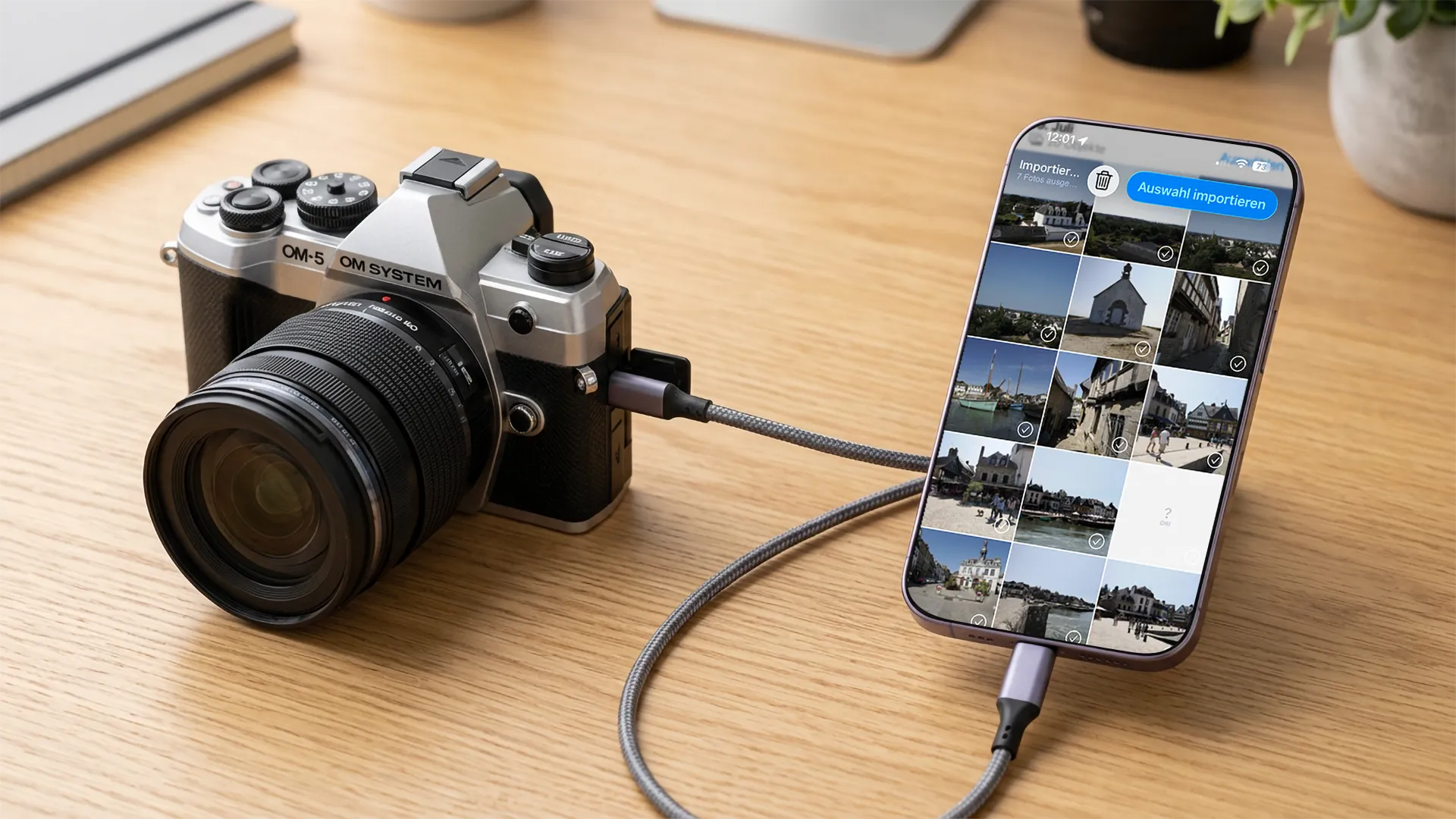
The other day I wanted to pull a large batch of photos from my camera onto my phone. With that many images, Wi-Fi would have taken too long, so I reached for the USB-C cable. My phone has USB-C, the OM-1 has USB-C. Plug and play, I thought.
The camera just showed „Waiting”. And waited. And kept on waiting.
My phone is an iPhone 17, not the Pro version, and it’s well known that it doesn’t support USB 3.0. Obvious explanation, case closed, I thought. Then, just to double-check, I connected a completely ordinary USB-C SSD to the same iPhone with the same cable, and it was recognized instantly, no workaround needed. So the case is open again: if missing USB 3.0 were the whole story, the SSD should have struggled just as much as the camera.
What’s really behind it, I don’t know yet. I’ve sent a support request to OM Digital Solutions. What I do have is a workaround that works reliably for me.
In this article I’ll show you what I know about the cause so far, how to find out whether your own combination of camera and phone or tablet is affected, and what you can do if the direct connection fails for you the same way it did for me.
Why the connection can fail
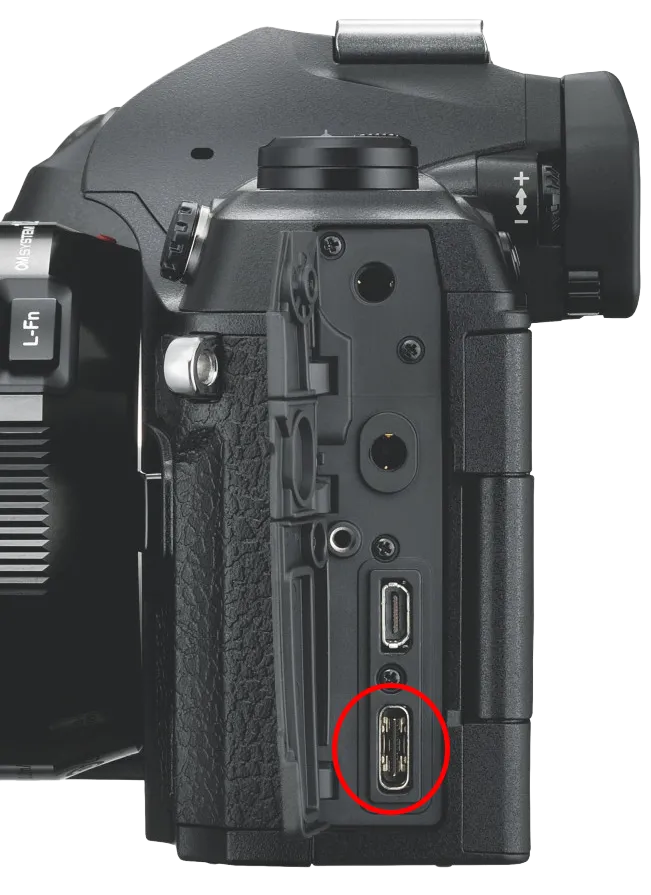
USB-C is just a connector shape, nothing more. The plug itself doesn’t tell you which speed or protocol is behind it, and that’s exactly what most people don’t know. Cameras with a faster USB 3 port first negotiate with the other side how fast the connection should run.
Smartphones, too, often have nothing more than USB 2.0 behind their USB-C port. The iPhone 17 without the Pro tag is one of them. Normally that’s not a problem, both sides simply agree on the slower speed. With my SSD on the same iPhone, that went smoothly. My OM-1, on the other hand, doesn’t agree on anything, it simply doesn’t get through.
It’s not the cable, I used the same one for both tests. And it’s not purely a USB 2 versus 3 issue either, otherwise the SSD would have caused the same trouble. What’s left is the combination of the OM-1 and the iPhone 17. As soon as I know more, I’ll update this article.
How to recognize it on your own setup
If the direct USB-C to USB-C connection fails, my OM System camera first shows that it’s waiting for the connection. Because nothing happens, it then either jumps back to the selection menu for the USB mode (if the USB setting is on AUTO) or simply hides the „Waiting” message again.
The solution that works for me
My workaround: a USB-C to USB-A cable, plus a USB-A to USB-C adapter on the iPhone. Sounds like a hack, but it works reliably for me every single time.
My guess as to why the detour helps: going through the USB-A connector fixes the speed at USB 2.0 right from the start. The camera doesn’t have to negotiate anything and goes straight into storage mode. I haven’t confirmed this, it’s part of the open question about the root cause mentioned above.
If you’re facing the same problem: don’t blame the cable or the camera right away, try this detour first. For me, that made all the difference.
Which devices actually work?
With the iPhone Pro models, the direct connection to the camera works reliably from the 15 series onward (iPhone 15 Pro / Pro Max and newer). With the non-Pro models it’s a different story, at least for me: my OM-1 won’t connect to the iPhone 17, even though an external SSD works fine on the same port. This is where the workaround above helps. I’ve specifically tested this with the OM-1, whether other OM System / Olympus cameras with USB image transfer show the same behavior is one of the open questions I’m still chasing.
Android smartphones with USB-C usually work, as long as the device supports USB OTG. The same applies to tablets: Android tablets with USB-C and iPads with a USB-C port generally work fine.
| Device | Has USB-C | Works directly with the camera | Note/Workaround |
|---|---|---|---|
| iPhone 15 Pro / Pro Max and newer | Yes | Yes | – |
| iPhone without Pro (including the 17, tested by me with the OM-1) | Yes | No, in my case | Use the USB-A detour, cause still unknown |
| External USB-C SSD on the iPhone 17 (non-Pro) | Yes | Yes | Shows the problem isn’t generally with the iPhone’s port |
| Android smartphone with USB-C | Yes | Mostly yes | If it fails, try the USB-A detour |
| iPad with USB-C | Yes | Mostly yes | If needed, try the USB-A detour |
What you need
- A camera with a USB-C port and image transfer over USB enabled. This isn’t limited to the OM-1: any OM System / Olympus camera that transfers images to a computer via USB and offers a Storage USB mode in its menu works on the same principle. You set the mode in the camera menu.
- A USB-C to USB-C cable that actually transfers data. Some cheap cables can only charge.
- A smartphone or tablet that plays along, see the overview above.
- For non-Pro iPhones, keep a USB-C to USB-A cable plus a USB-A to USB-C adapter in your bag just in case.
Step by step
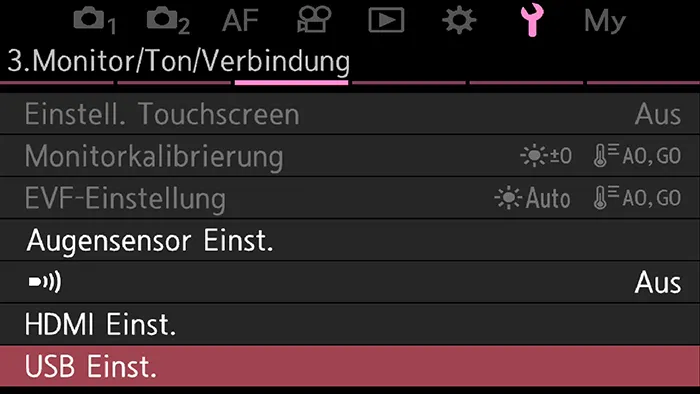
1 Set the correct USB mode in the camera menu. On OM System cameras you’ll find this under USB connection settings
2 Plug the cable into the camera and your smartphone or tablet.
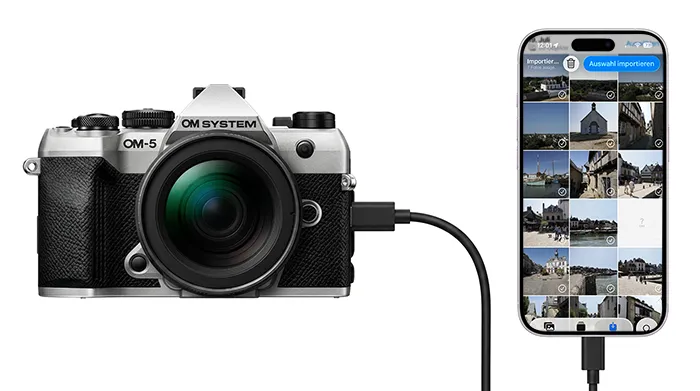
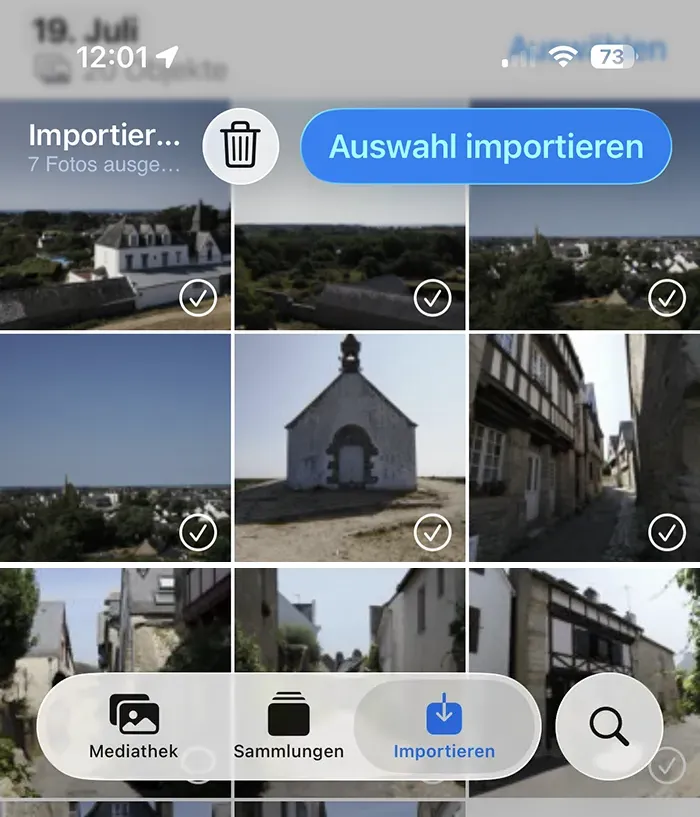
3 Open the Photos app or the Files app on your smartphone. In the Photos app you can select and download the images directly. In the Files app the images behave like regular files that you can copy onto your phone. Both JPEG and ORF files work. ORI is a native OM Digital Solutions format and therefore isn’t supported by the operating system.
Why cable instead of Wi-Fi?
Cable is faster, noticeably faster, and that shows with many or large files. Wi-Fi transfers also tend to drop out, especially with long bursts or RAW files. On top of that, OM System cameras are held back by their built-in Wi-Fi hardware: even the current top OM camera only supports up to IEEE 802.11a/b/g/n/ac, in other words Wi-Fi 5, and without MIMO technology. Without MIMO, the camera only uses a single data stream instead of several in parallel, which limits the possible speed on top of the already dated Wi-Fi standard.
On the go, while travelling or during a workshop, the cable is therefore usually the more practical choice if you want to back up or share images quickly.
For the other case, when Wi-Fi is perfectly fine for you or you don’t have the cable handy, I cover the setup in two separate articles: Automatic image transfer to mobile device for transferring to your smartphone, and Wireless tethered shooting with E-M1X / E-M1 Mark III / OM-1 for transferring to your PC.
If it still doesn’t work
Run through this checklist before you swap out the cable or the camera:
- Is the correct USB mode active on the camera?
- Does your cable actually transfer data, or is it a charge-only cable?
- Is your device fundamentally compatible? See the overview above.
- Is the camera battery charged enough?
Most important point: if the direct USB-C connection fails completely instead of just running slowly, try the USB-A detour before you start doubting your cable or camera. And if your camera and phone combination still won’t cooperate, a USB-C card reader is the no-fuss alternative.
Conclusion
A cable connection is fast and reliable, but only if the hardware on both sides plays along. USB-C alone doesn’t guarantee that, that’s the lesson from my afternoon with a waiting OM-1. Why the direct connection to the iPhone 17 doesn’t work, while an SSD on the same port does its job just fine, is still an open question for me. The USB-A detour solves it anyway.
Which camera and phone combination do you use, and does the connection work directly for you, or do you need a detour too? Feel free to share it in the comments.