

OI.Share from OM Digitalsolutions allows you to easily and conveniently download images from your camera directly to your mobile phone. If you take a lot of images, like me, on a trip, you want to avoid having too many images end up on your mobile phone. That’s why OM Digitalsolutions has built a feature into its cameras that allows you to mark the pictures you want to share for download directly in the camera. You can do this every time you particularly like a photo and then download them all at once at the end of the day. I’ll show you how to do this here.

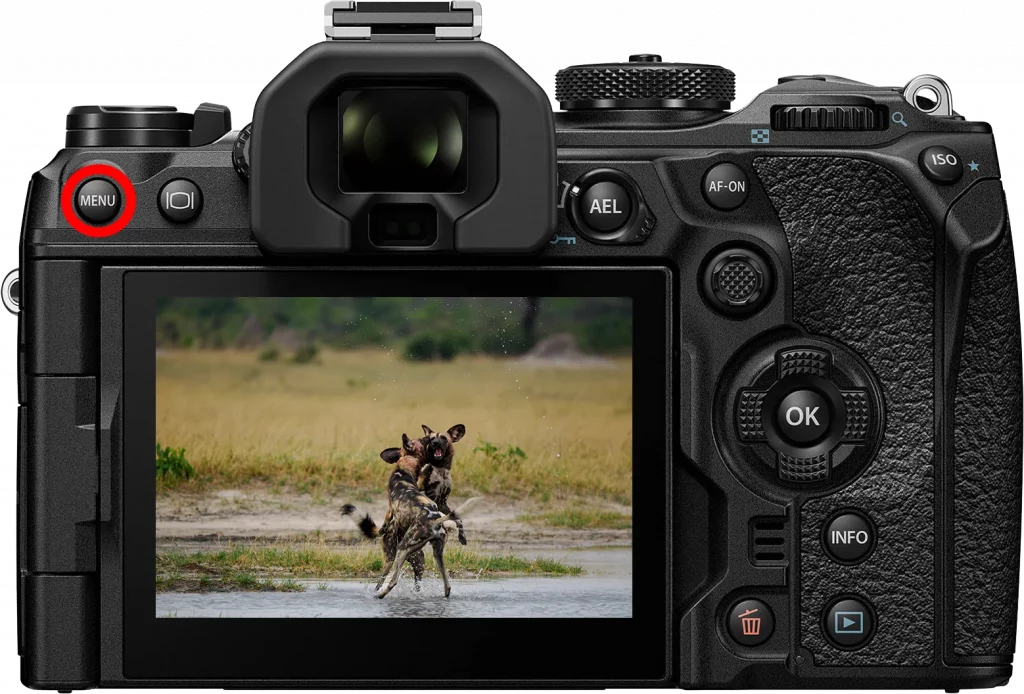
1 When you are in playback mode on your camera, press the OK button..
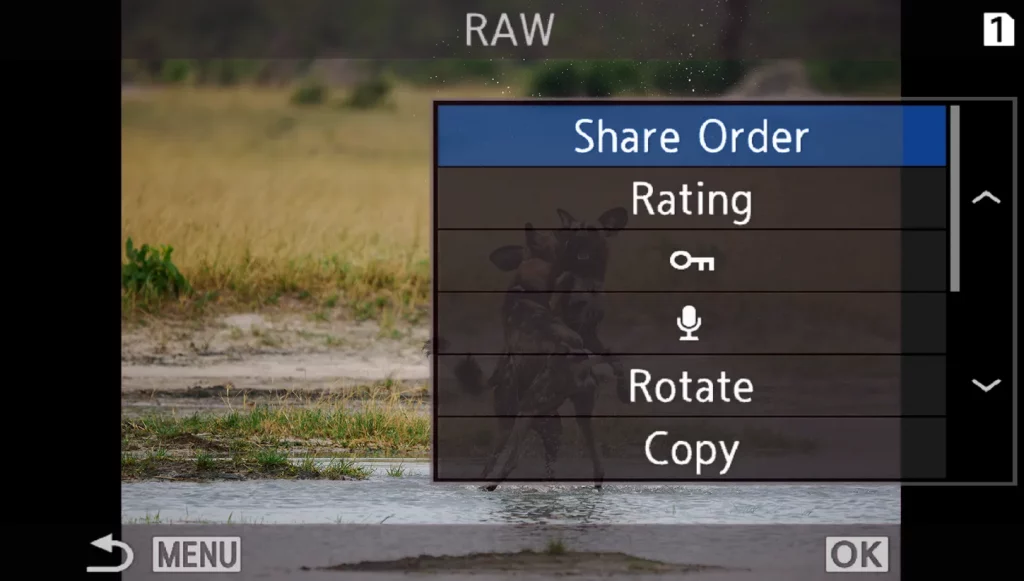
2 The playback menu will open. Here you will find an entry called “Share Order”. Press the OK button again to activate the function.
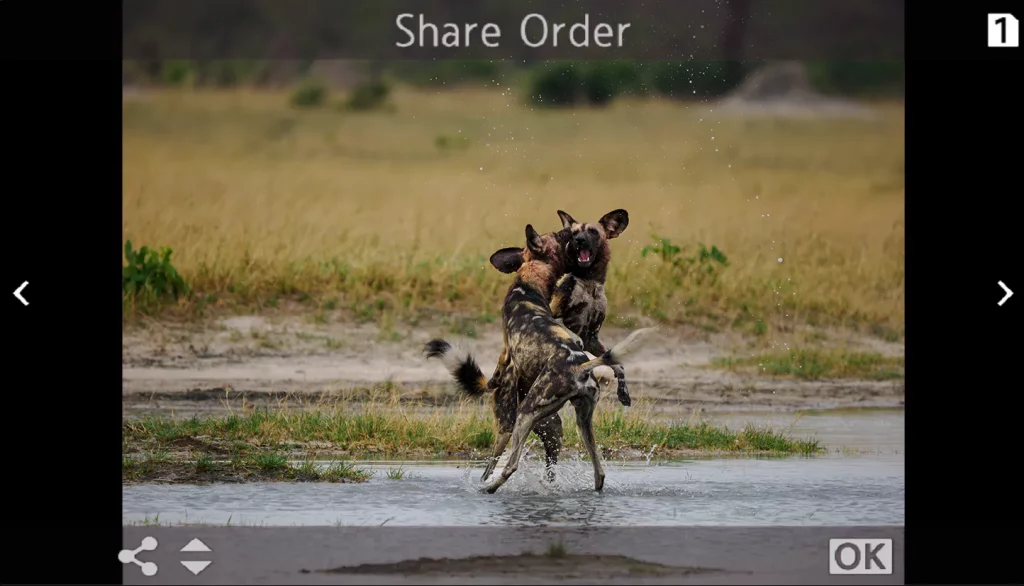
3 Now you can scroll through your images using the left/right buttons. Use the up button to select the image you want to download.
4 Selected images are marked with a green symbol (see image on the right).
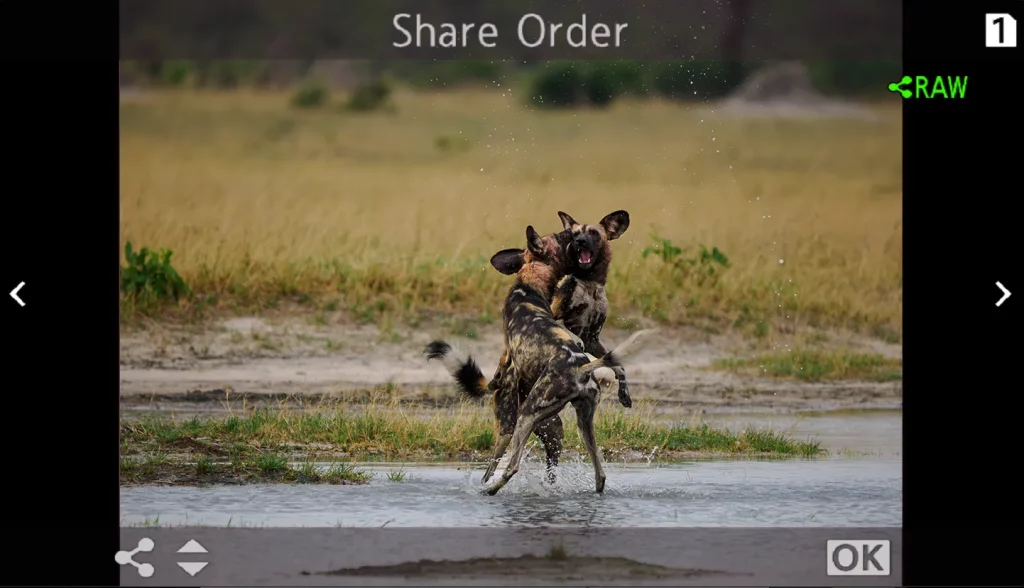
5 Once you have finished making your selection, press the OK button again to exit the mode.
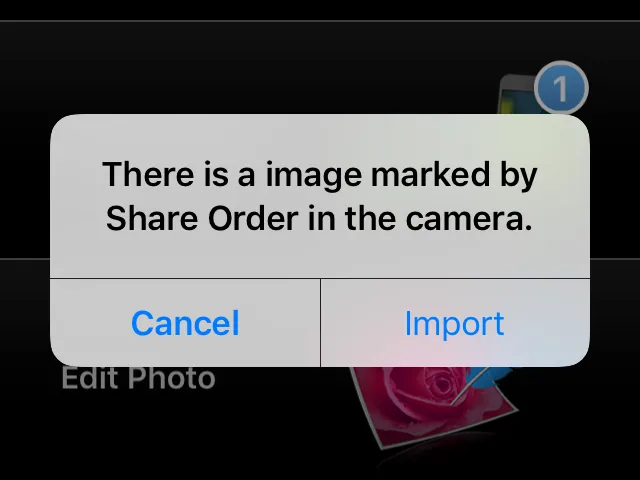
6 Now start OI.share and connect your mobile phone to your camera. Once the connection is established, OI.Share will ask if you want to import the selected images.
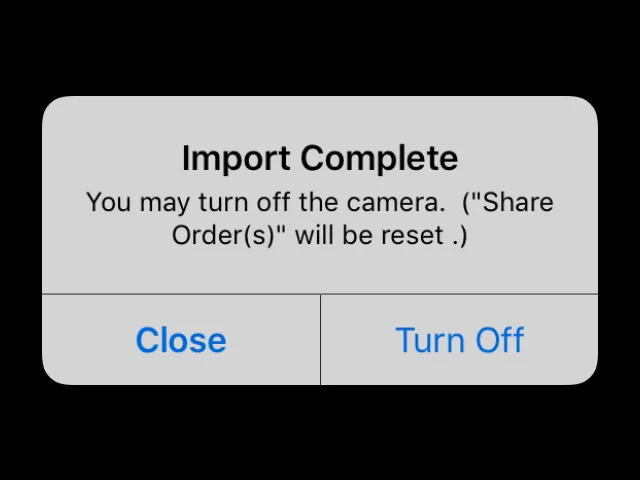
7 Once the images have been downloaded, OI.Share will ask you if you want to switch off the camera.
Extra Tip
If you use this function frequently, you can also access “Share Order” directly via the touchscreen. Simply tap the screen briefly. A menu will appear at the bottom of the screen, where you will find the “Share Order” icon.